
This guide will help you configure Country Blocking feature. This feature is used to block the users from selected countries with IP-to-Country mmdb lookup file to secure your site more accurately.
Note :- This feature requires the Loginizer Pro plugin.
Enabling Country Blocking
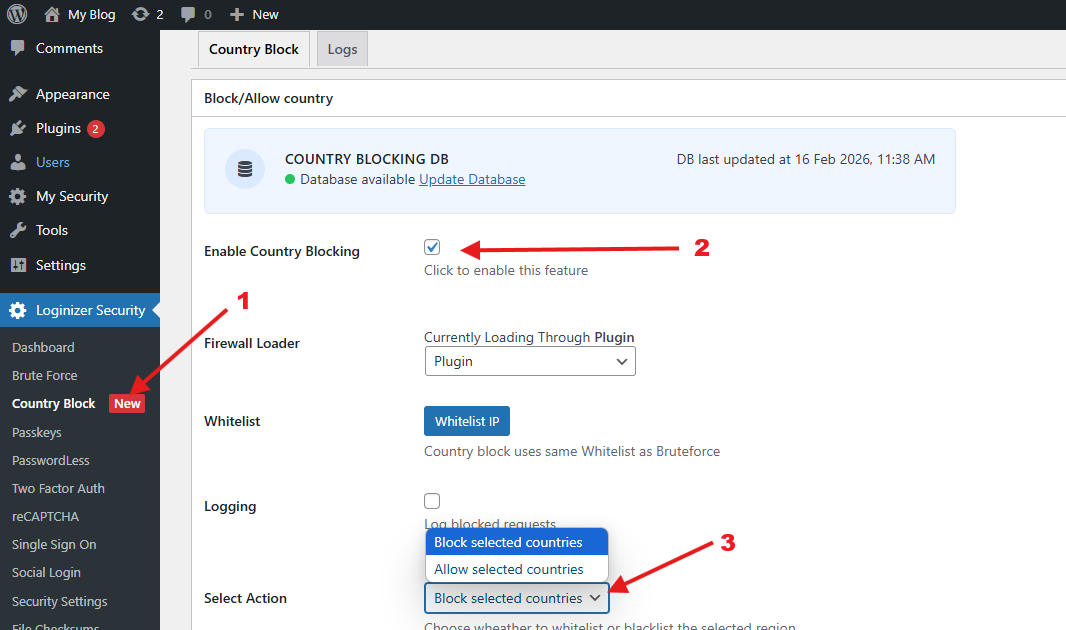
Navigate to WordPress Admin Panel -> Loginizer Security -> Country Block and then click on the Country Block tab.
Click 'Enable Country Blocking' to activate feature.
Now select the action to perform on selected countries. Select 'Block selected countries' if you wish to block selected countries, otherwise select 'Allow selected countries' if you wish to whitelist selected countries and block others.
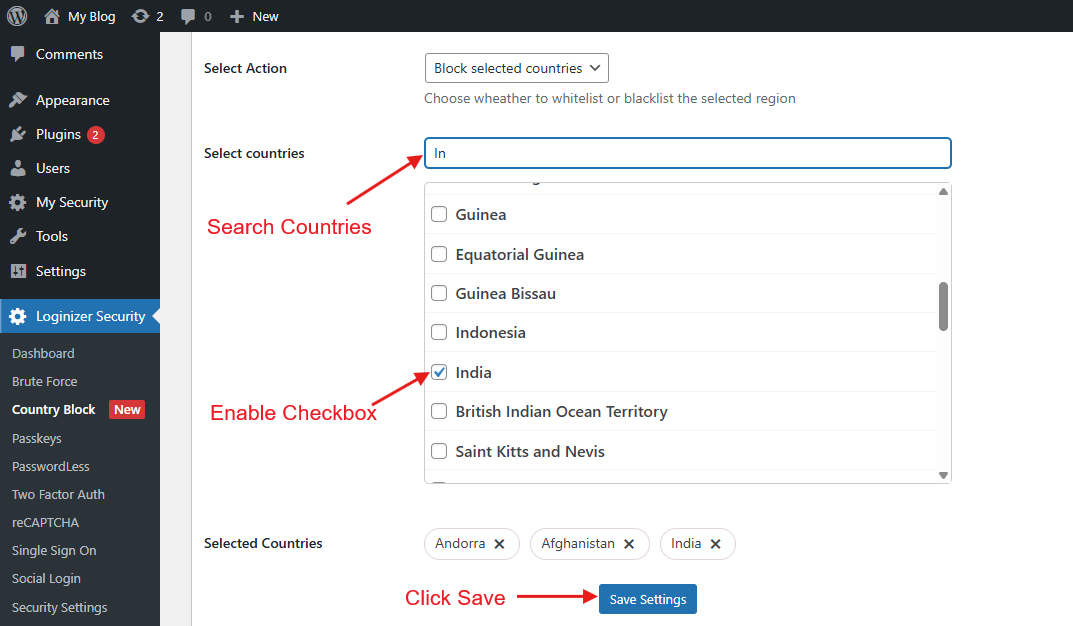
Search for the countries by name, select each country and click on the Save Settings.
Country Blocking via Server
Note :- This is optional because the feature also works through MU-Plugins.
There is a setting in the PHP called 'auto_prepend_file' which executes the included file before any code or script runs on the site.
We will use this PHP directive to run Country Blocking feature to modify the .htaccess or the .user.ini file based on the server configurations to block selected countries more accurately.
In order to enable country blocking via server, please follow the steps give below :-
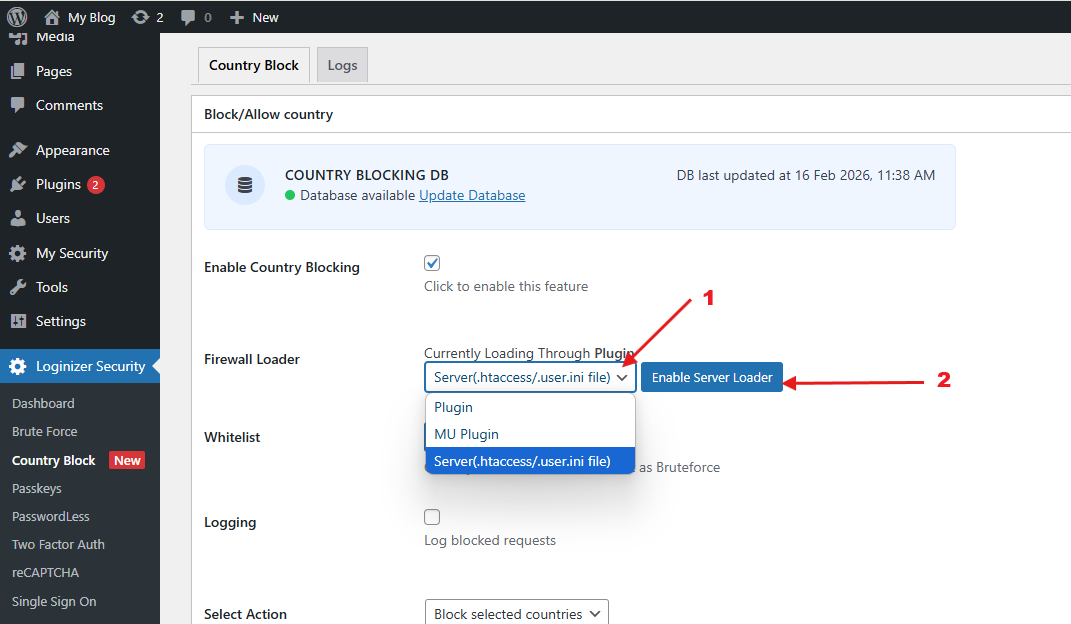
Navigate to 'Country Block' tab, Select 'Server' option under the 'Firewall Loader'.
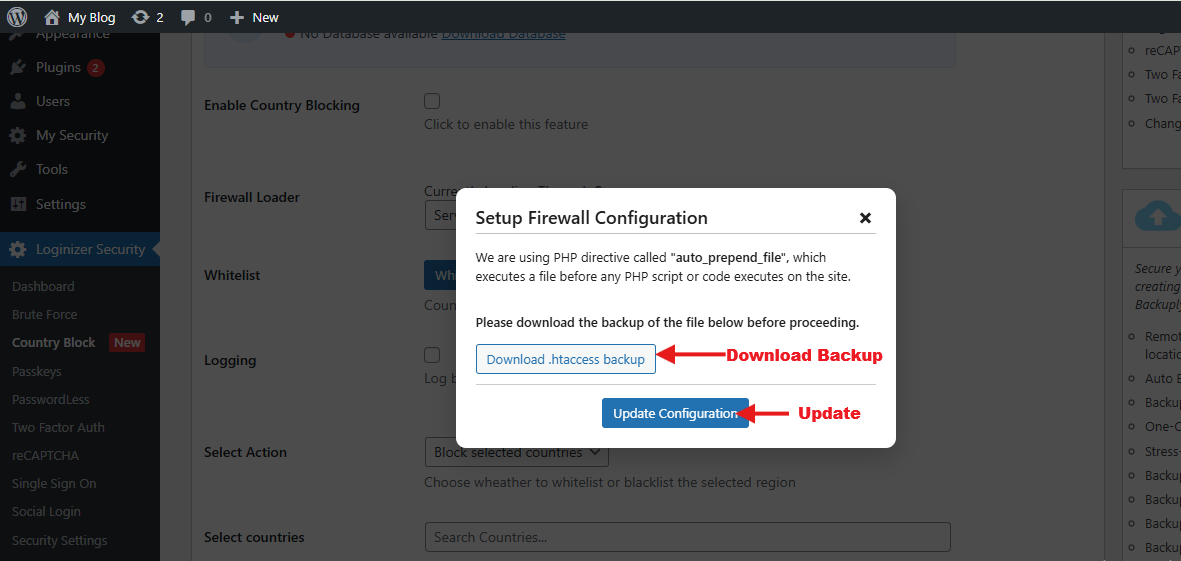
Click on the 'Enable Server Loader' button and a popup will be opened. An example image is shown below.
Download all the necessary backup files, then click on the Update Configuration button. These changes might take 30 seconds to 5 minutes based on your server configuration. so, please wait before making another change.
If any file already using this setting, the file path and the option to manage this file will be there and you can select how you want to deal with that file.
If you do not recognize this file then select 'override existing file' otherwise select 'Include existing file' and we will include this file in our Loginizer Waf file.
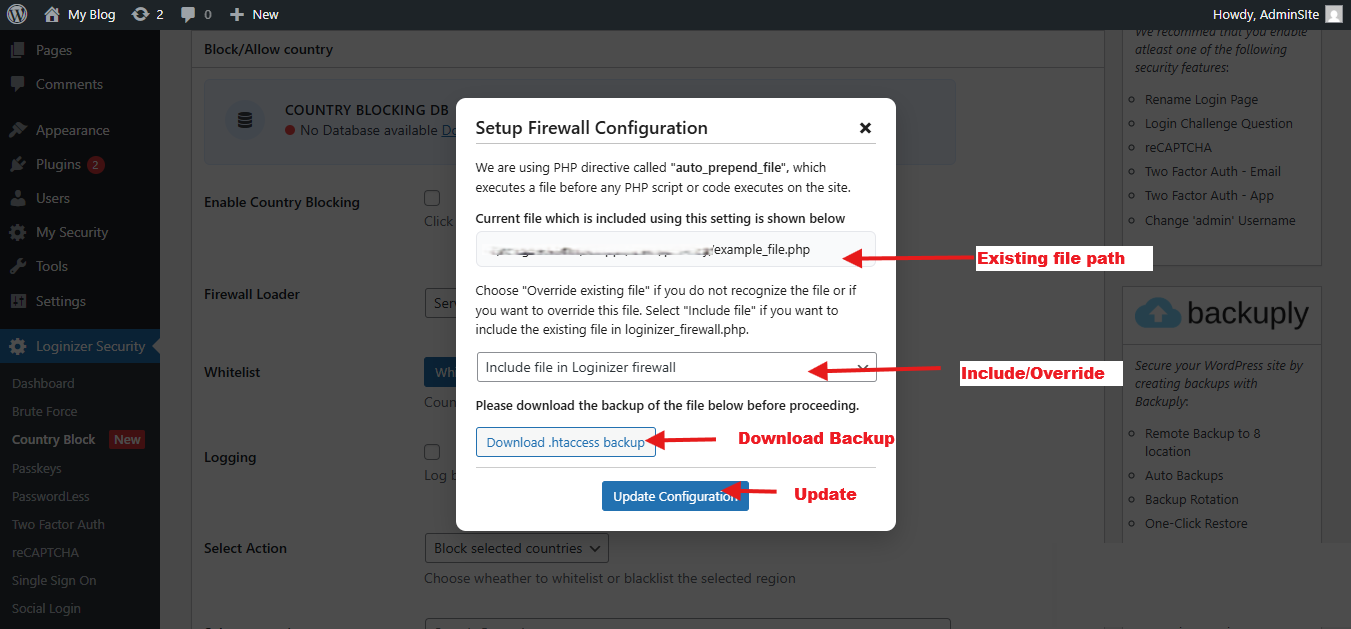
That's all, download all the backup files and click 'Update Configuration' button.
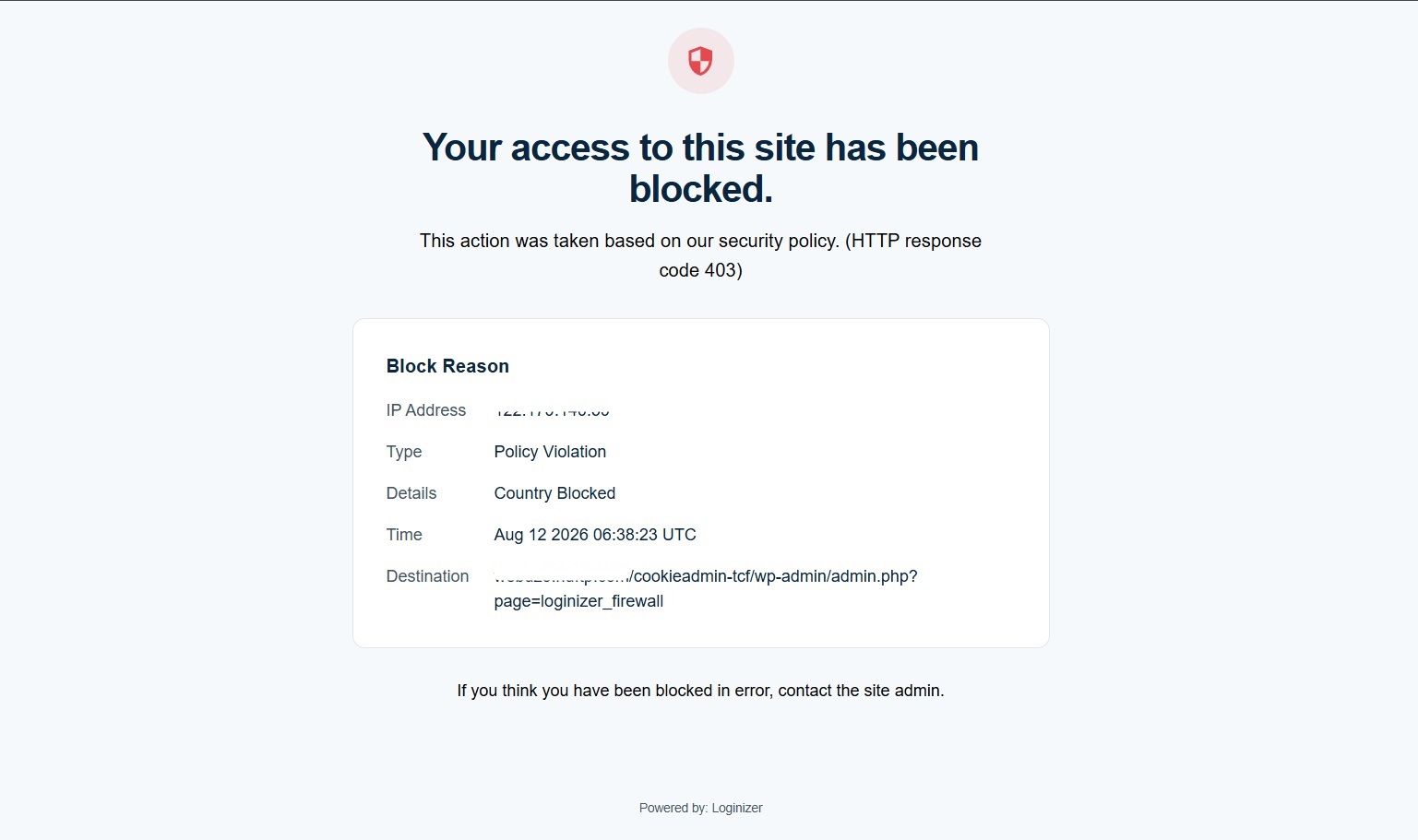
A screenshot of the blocked page is attached below for reference.
Disable Country Blocking
Click on the 'Disable Server Loader' button and the popup will be opened.
Now, download all the necessary files as backup and click on the 'Update Configuration' button.
That's all, the country blocking feature will be disabled from the PHP setting 'auto_prepend_file' and will be running via MU-Plugins.
Manually Disable Country Blocking
If somehow you are blocked by country blocking feature, you can disable this feature manually.
Open 'File Manager' on your server and go to your wordpress installation where you have been blocked and want to disable this feature manually.
Now, open wp-content -> uploads -> loginizer-config directory and look for firewall-config.php file.
Open firewall-config.php file in the editor and you will see a JSON with key named 'country_blocking' and 'enabled'. Set 'enabled' to 'false'.
That's all, the country blocking feature will be disabled manually.